Add missing variables
When defining a variable, the system will first check to see if a variable with that name exists in another regime. If there is, it copies the entire variable definition across. If the variable name is new then the system makes basic assumptions about it being PeriodicNumeric and having Currency units.
To add a variable:
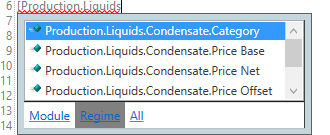
- First type the variable name into the editor. Typing a '[' (left brace) indicates to the system that a variable name is being typed. The intellisense provides a dynamic prompt with available variables as you type. By clicking All in the intellisense pop-up you can search other regimes in the hierarchy.
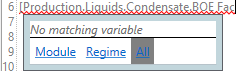
- To filter down the intellisense suggestions, simply continue typing. If there is a variable with an appropriate name, you can select it and use it. This will copy the entire variable definition into the regime. In the example below, no suitable variable has been found using the All tab:
- If there is no matching variable, define the new variable and then click the Add Missing Variables button
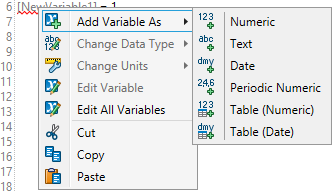
 . This will add all the new variables in one go. However, they can also be added individually by right-clicking the variable and selecting Add Variable As. Note that in order for the variable to be valid it must follow the format of the variable type that you wish to set.
 - To specify properties for the variable, right-click it and select Edit Variables. If you have added a variable that already existed in another regime, its data type and units will be copied into the new variable. For more information, see Edit variables.
Note: Date variables must be entered in the same format as the periodicity that you have specified for the module. For example, if the periodicity is Monthly then the value must be entered as 'mm.yyyy' to be valid.